




Google Ads has a more robust calltrackerFX setup than most other platforms. In this guide, we’ll learn how to set up CallTrackerFX to track all PPC phone calls.
Tracking Your Call Ad Assets (AKA Call Extensions) in Both Your ‘Calls From Ads’ Conversion Action in Google Ads and in CallTrackerFX
Some visitors can call from your Google Ads campaign without ever visiting your website. To account for this, you need to be sure that you use a CallTrackerFX phone number as the main line in your ad asset. Note that assets are the same thing as ad extensions, however, Google changed the name of extensions to Assets in 2022.
This step is pretty simple, simply take your Google Ads number, such as below, and use that instead of your main line when setting up the ads asset.

When you go to create your ad asset in Google Ads, simply paste your tracking number into the phone number section. If you already have these assets set up, you can edit them easily and add your CallTrackerFX number into the setup and hit save. See below for reference!
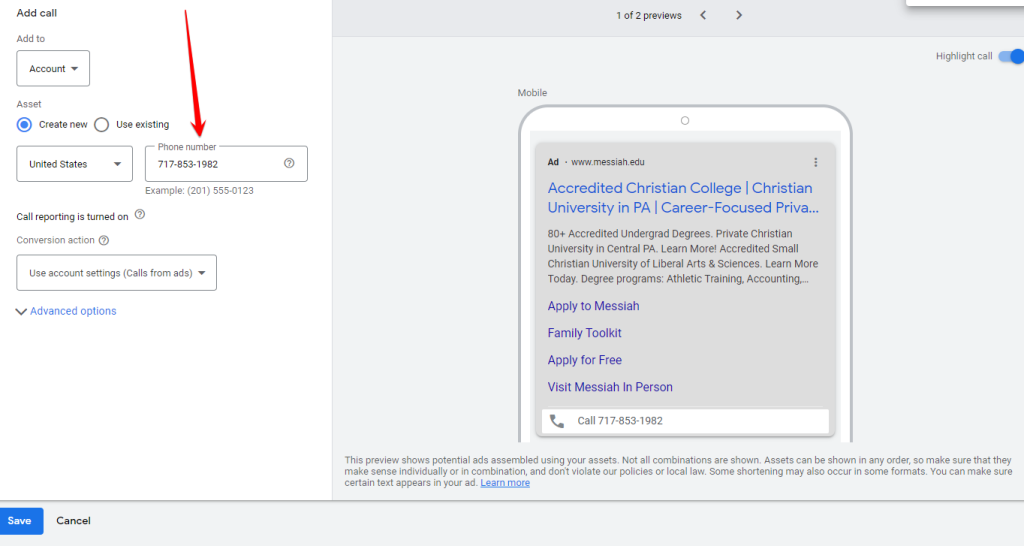
Now anytime someone calls you directly from the call ad asset, the call will be logged in both CallTrackerFX, and Google Ads, assuming you have a conversion action set up for calls from ads, such as below:

If you don’t use a CallTrackerFX number for your asset AND set up your conversion action for calls from ads, these calls will not be logged in both CallTrackerFX and Google Ads.
Tracking Website PPC Phone Calls in Both CallTrackerFX and Your Google Ads Account
Tracking your ad assets is only half of the battle when it comes to PPC call tracking. If someone clicks your ads and visits your website, then dials the number, these calls are not accounted for. To track these calls, there is an additional setup needed!
We do not recommend using Google’s call tracking solution. Though it does work for counting calls from the website in Google Ads as conversions, it only works with calls generated from Google Ads. It also does not allow you to review the calls for things such as transcripts.
To view calls from PPC that occur from a website visit in both CallTrackerFX and as a Google Ads conversion, you’ll need to:
-
- Confirm you have call pooling enabled by checking the “Federated Number Pool” tab of CallTrackerFX. Call pooling in CallTrackerFX allows you to show each visitor from a channel a unique phone number. This allows us to collect the Gclid, which is the unique ad click ID needed to import phone calls back to Google Ads.
-
- Create a conversion action in Google Ads. When prompted to select the type of conversion, you’ll actually chose “Import” instead of “Phone calls”. This is because we’ll be importing these phone calls from CallTrackerFX to Google Ads.
-
- Select an import for the option “Other data sources or CRMs” and then select “Track conversions from clicks”
-
- Set the category to “Contact”. Name your conversion something like “CallTrackerFX Phone Call”. Set the value to a monetary amount of the call, eg $5. Then, set the count to “One”. This keeps a single caller who calls multiple times from showing as numerous conversions.
-
- Choose your click-through conversion window (90 days is recommended)
-
- Choose your attribution model (typically data-driven is recommended)
-
- Choose “API” for the method of upload for your offline conversions.
The final step for importing phone calls is to build the API integration. To do this, please notify the MarketingCloudFX Solutions team. If you are a WebFX client, please notify your account manager. We offer white-glove support for building integrations with platforms like Google Ads. All we need for this is:
-
- Google Ads account ID
-
- Conversion action name you want conversions imported to
-
- Value of the conversion action
-
- Any other relevant specifics, such as if only calls of a certain length should be imported (eg. calls greater than 30 seconds)
Once the integration is built, you’ll be fully up and running with tracking Google Ads-driven phone calls in both Google Ads conversions and in CallTrackerFX!