




In this guide, you’ll learn everything you’ll need to know to feel great about your new integration with MarketingCloudFX Deals. Learn what it is, how to view deals, how to report on them, how to view contacts in different stages, FAQs, and more.
Benefits of MarketingCloudFX Deals
True Revenue Reporting
This API was designed so we can ingest CRM deal or opportunity data directly into MarketingCloudFX without the need to match it to a specific touchpoint. Our old integrations were forced to tie a deal to a specific form or phone call. These had flaws for contacts that had more than one touchpoint via form or phone call. Rather than touchpoints, deals are associated with Contacts in Customer360FX.
So the deals API solves that. A person with 1 touchpoint could have 10 deals or a person with 10 touchpoints can have 1 deal. With the deals API, we’re able to properly attribute revenue in both scenarios!
True 1:1 Sync To Enhance OmniChannel Marketing Efforts
Another added win is that it gives us a 1:1 contact sync where we can sync qualified contacts from the clients CRM into customer360FX. Let’s take a scenario where a client goes to a tradeshow, generates 20 new contacts and reaches out to them after the show is over. Wouldn’t it be great if we could take those contacts who never engaged with our website, thus are not in MarketingCloudFX, and use them for strategies like:
- AdTechFX retargeting
- Email marketing drip sequences
- Google Customer Match list audiences
- Facebook Lookalike Audiences
- Etc etc
Now you can!
More Transparent Reporting
Another huge win with this update to integrationsFX is that we will have more transparent reporting. Let’s say a new equipment dealer starts working with WebFX. The equipment dealer has a customer that’s a construction company that has rented equipment from them for years. In many cases, the contact from the construction company may do a branded google search, click on the organic listing, and then reach out to rent their next piece of equipment. Wouldn’t it be awesome to know that was a customer for our client prior to their relationship with WebFX? Sure, our “New Lead” numbers will be less, but our reports can now be 100% transparent because we have their whole historical dataset of CRM deals!
Historical Backfill To Hit The Ground Running Faster with Marketing Efforts
A massive win with this API and feature is that we can backfill all historical data from a client’s CRM, for both contacts and deals (or opportunities). This gives our database all of the clients historical data which allows us to move much faster on strategies such as AdTechFX, Email Marketing, Facebook lookalikes, Google Ads customer match targeting, and more! You don’t have to want for leadmanagerFX and calltrackerFX to track leads for months on end to have emails lists large enough to reach minimum audience requirements faster!
More Dynamic Functionality For Conversion Feeds to Ad Platforms Like Google, Facebook, and Microsoft
With Google Ads, Microsoft Ads and Facebook Ads, we can now optimize for “Deal Value”. With our old workflows, we could only use static values for all CRM data other than closed won. Since a click ID from ad platforms typically expires in 90 days, many clients with longer sales cycles have to optimize for something further up their sales funnel, such as a deal existing.
With the Deals API, we’re able to sync these deals with their varying values back to the ad platform instead of just a static value applied to all conversions we sync into the ad campaign.
The value of this would be the ad platform not just targeting the good leads as if they’re all even, but it would put a higher emphasis on those with the largest deal value and potential for our clients business. As more of these close, ROI would scale of the campaigns.
Note that this strategy isn’t always recommended, but is now an option. Work with your MarketingCloudFX Data Architect to strategize these ad pipelines once your CRM integration is live.
How Do I See Deals and Revenue in MarketingCloudFX?
Once an integration is live, deals will populate in Customer360FX contact records as well as the deals tab of customer360FX. You’ll be able to see all won, lost, or open deals for your client there.
You will no longer see touchpoint status and revenue in LeadManagerFX and CallTrackerFX. This is fine, however, because the touchpoints in LeadManagerFX and CallTrackerFX for a contact will literally be a click away from the contact record! This will also only rate contacts thumbs up/down and will not rate individual touchpoints. Manual updates to LeadmanagerFX and CallTrackerFX such as touchpoint status updates, revenue updates, or rating updates will sync up to the contact record, but updates to the contact record will not sync down to the touchpoints.
The only shared element between touchpoints is Contact Stage. Contact Stage works very similarly to Touchpoint status, however, it’s showing the relationship of a contact to our client’s businesses, so all phone calls and form submissions we collect will share the same contact stage for that contact. This keeps us from overcounting qualified leads, customers and more.
Filtering by contact stage is quite simple in Customer360FX Contacts. Let’s say I wanted to see all of my sales qualified leads for a client. I could simply select a filter such as below and apply it to the contact database.
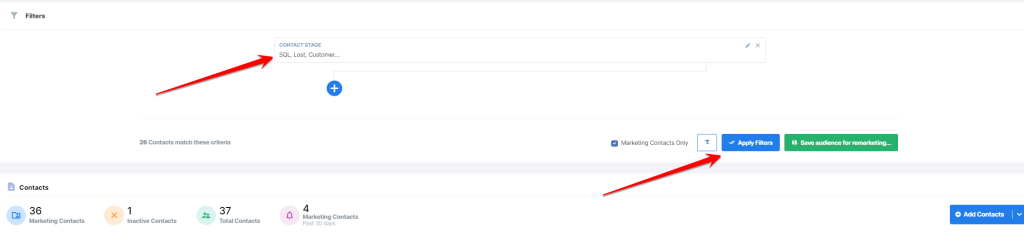
Please note I added lost and customer to that filter because typically those are qualified leads that have just been closed into a customer or they were lost in the sales process.
Once I apply the filter, I can then see the list of all contacts that match that criteria in the database.
When it comes to seeing the actual deals data, you’ll be able to see all of the deal history in a recap within the contact record such as below.
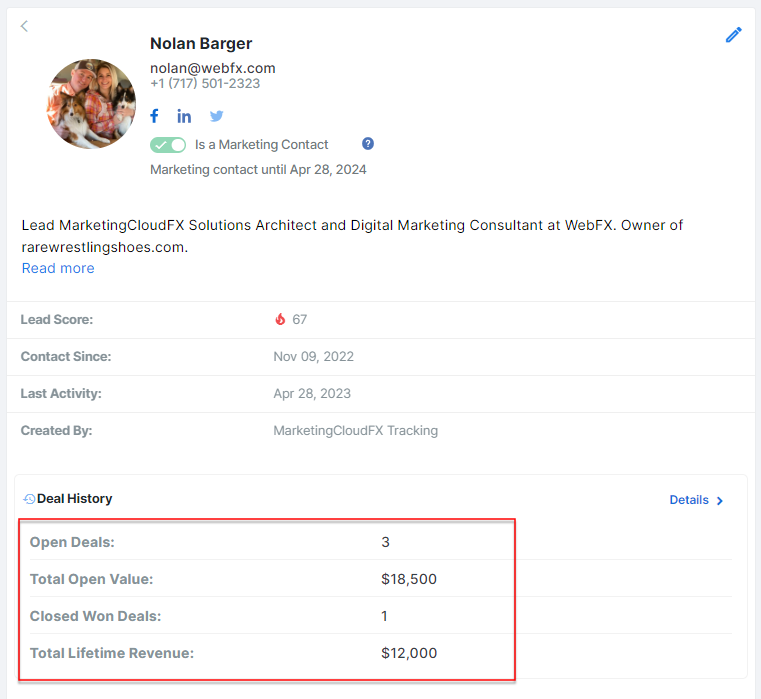
When you click on “Details”, you will see the following:
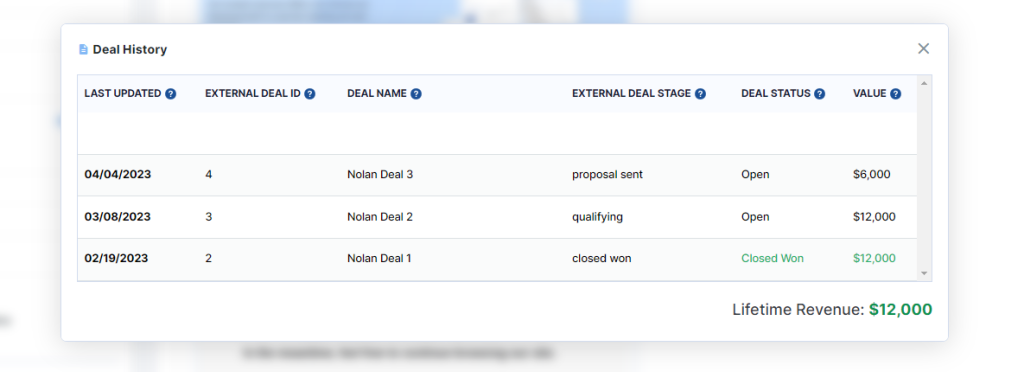
An explanation of the fields you see in the above image can be found below!
- Last Updated is the date the deal was last updated in the CRM or the date the deal was closed won or closed lost.
- External Deal ID syncs the record ID of the deal from the CRM deal or opportunity. This allows you to easily access that record in the CRM to see where the data has synced from.
- Deal Name is the name of the Deal or Opportunity in the client’s CRM.
- External Deal Stage is something that will only show for Data Pro or higher plans. This field shows the exact stage of the deal or opportunity from the client’s CRM for more detailed reporting capabilities.
- Deal Status will show if the deal is open, won, or lost.
- Deal Value will show the amount the client logged in their CRM for the deal.
- Lifetime Revenue will show the total value of all closed won deals we synced from the client’s CRM.
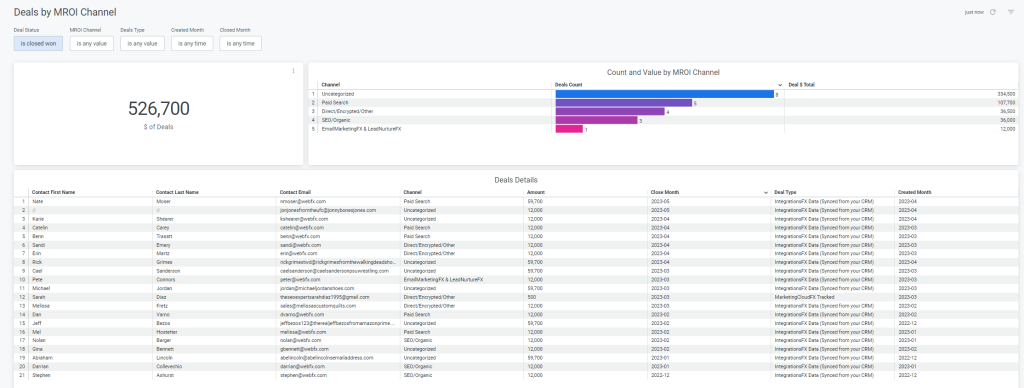
The other thing you can do is use the deals tab. This allows you to dynamically use filters to see how many deals were opened for a client in a specific timeframe, and also how many were closed won for your client in a specific time frame. Below is a screenshot of the information stored in the deals tab.
How Do I Report On Deals From A Client’s CRM Integration in MarketingCloudFX
In this section, I’ll break down what you need to know about reporting on MarketingCloudFX deals!
Key Reporting Considerations
We have a few ways of doing this. First and foremost, I’ll start by saying that in vast majority of cases, businesses consider any “Deal” or “Opportunity” as a Qualified lead. Typically clients prequalify “leads” in a “lead” record within their CRM. Then they “Convert” that lead to a deal or opportunity to work them through their sales process. Often reporting on the total number of “Deals” can serve as a vanity metric for qualified leads, however, one person can have many deals. Therefore, for reporting on leads you might also consider reporting based on Contact Stage (described below).
One other important note with reporting is that the “Date” should pull from the close date of the deal. For many businesses, including WebFX, sometimes the sales process can take 6+ months for a deal, especially a high-value deal, to close. Keep this in mind when reporting. You want to be reporting on both the total number of touchpoints and also the amount closed that month, but there could be great lead-driving months, with low revenue numbers, just due to the fact the client has a long sales cycle. It’s almost impossible for many b2b companies to report on things like ROI on a month-to-month basis for this reason. You are much better to expand your date range to something like “Year to Date” or “Last Quarter” to get a true ROI picture. Otherwise, you’re most certainly undervaluing WebFX’s impact on the client’s bottom line.
Most clients care about two things with reporting, and those are:
- Opportunities & Opportunity Value Driven – This is essentially the sum of all deals, won, lost, or open, and their amount. This shows how much we “put on the table” for their sales team to close.
- The number of Won Opportunities & Revenue – This shows essentially the money the business is making directly from leads driven from our campaigns.
Reporting in The Deals Tab of Customer360FX
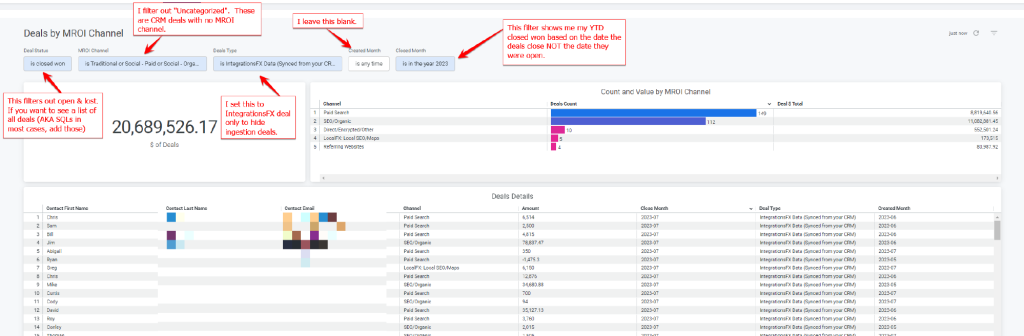
This tab allows you to easily filter by MROI channel, as well as close date for finding won deals. It also allows you to filter by created date to see all deals opened in a specific month.
What you need to know about this deals report:
- Created Date is the date the deal/opportunity was opened in the client’s CRM.
- Those with an MROI channel of “No Channel Available” were contacts created from the integration, not through our MarketingCloudFX Tracking. An “Uncategorized” deal is one where the source/medium values don’t match up with any of the MROI Channels set up in Settings.
- Reporting from this should always be based on closed month. Not created month. Close month will be a static value, it will never grow after a month ends. However, created month can grow for years after a lead form is submitted as some sales cycles are very long.
- If your client has an integration live using the deals API, the “Hide Open MCFX-Tracked Deals” box should always remain checked. Here’s additional info for those interested.
- There is a Max of 1000 rows in the table. So if your client has 2000 deals, only 1000 will show at this time.
- A deal only shows in the table if it has contact info (email). This makes it super important that your client properly associates contacts to deals in their CRM, which should be a standard practice but isn’t always.
- The “Created By” filter indicates whether a deal was created through MarketingCloudFX tracking or through the integration. At this time, lead events that required an integration to make it into MCFX (such as ecom integration, pardot forms, etc.) are also created by IntegrationsFX. This may change in the near future, but it’s important to keep in mind if it applies to your client, as you can’t just use “Created By MarketingCloudFX Tracking” to find digital marketing deals.
- “Deal Type/Status Updates From” indicates whether a deal received info only from MCFX or also through the CRM integration. In most cases you won’t need to touch this. If you wanted to focus on CRM deals, you could filter out MCFX tracked. If you wanted to focus on ecom orders tracked in MCFX, you could filter out IntegrationsFX.
Here’s an example screenshot of reporting in the deals tab and filters I use:
Reporting in MroiDashboardFX
We are building out a beta report which has now been populated in the MROIDashboard, which can be seen below.
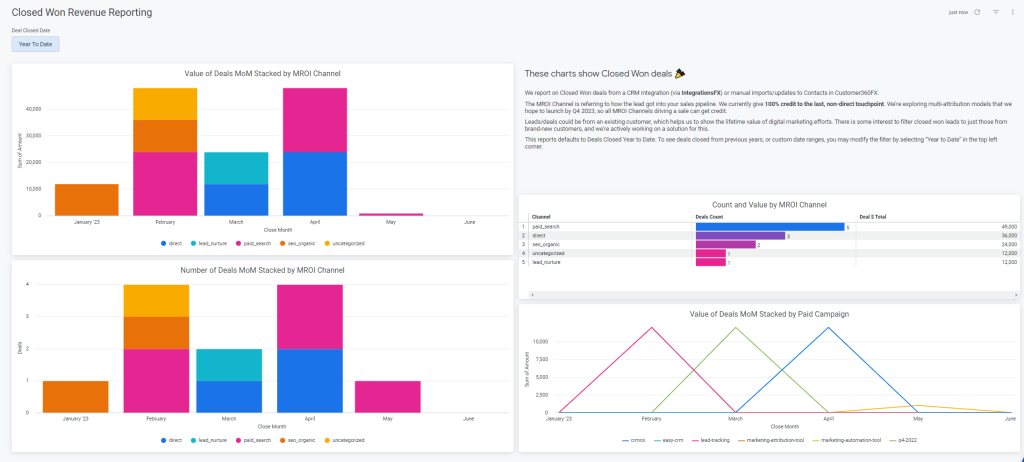
There are more updates coming for the tables and other data to read from MarketingCloudFX deals, but at a high level this will tell you how much your client has closed in revenue from different channels each month. The date range can be adjusted as well. By using this data, alongside the investment level in ad campaigns and for webFX fees, you can easily calculate the ROI of a channel.If you need something a bit more robust, keep on reading below!
Custom Reporting in Looker Studio
As a marketer, you have the ability to create custom reports from this data for your clients if they need or desire more granular information.
A few things you can report on from MarketingCloudFX:
- Number of touchpoints (forms or calls) per channel
- Number of contacts in a specific contact stage with a touchpoint during a specific month (Note that contact stage was added to bigquery for this so you can report on stage!)
- Number of deals that are open, won or lost during a specific month and the channels they came from
- Deal MROI channel (for those who have it)
- Deal value, open date (or start at), and close date (or close at)
Please note there is a guru on custom reporting found here. Key things to remember when building these custom reports are:
- Filter out ingestion deals unless you client is manually updated lead/call touchpoints with touchpoint statuses and revenue. These will not be relevant for client’s with CRM integrations. If the ingestion deal value = 1, filter it out.
- Filter to your client’s MarketingCloudFX profile ID, which can be found in their URL of their profile, It is a 4-5 digit numeric code found here.
- If you’re reporting on revenue, typically you want to use “Close Date” since that is often a different month than “Open Date”. The startat field contains the open date of the deal and the closeat field contains the date it was closed won or lost.
If you’re looking for some basic inspiration, we have a sample report found here (Please note edit level access can’t be granted to this report). If the report has any tables you’d like to use for your client, simply add a filter for their MCFX Profile ID here and begin building the report. Please note it’s very important to give ONLY webFX employees editor access for this report, otherwise your client could remove 1 filter and see all webFX client CRM data.
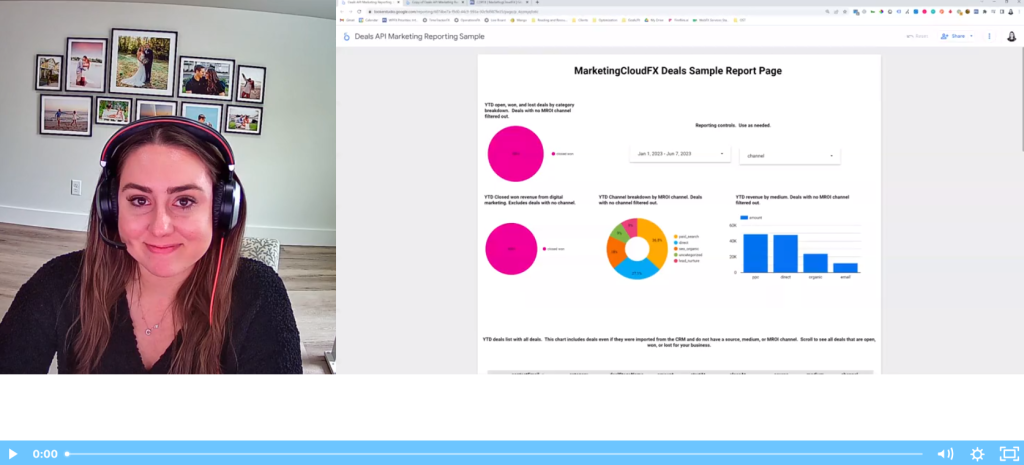
A sample 1 page of this report can be seen and duplicated below. It also has looker studio reporting FAQs on it!
Interested in making the report your own? Check out this video done by Cheyenne, one of our Looker Studio subject matter experts!
How Do I Report On New Contacts & Qualified Leads?
Reporting in Customer360FX
For reporting on leads, you also have the option of looking at C360 Contacts, rather than Deals. As mentioned above, a single contact might have multiple deals/opportunities associated with them. Though most businesses would still typically consider that contact a single lead. So reporting on new contacts created could be a good supplement to deals-based reporting.
You can find this information using Customer360FX Contact filters or Audiences. A basic filter setup for tracking MQLs driven through your digital marketing efforts might be something like:
- Created by: MarketingCloudFX Tracking (only include contacts created through a digital touchpoint, rather than being imported through the CRM).
- Contact Stage: MQL, SQL, Lost, Customer (when reporting on contact stages, it’s often a good idea to include any stages that occur after the stage in question as well as the main stage in question, because anyone who is a customer was also an SQL and MQL, etc.)
Customer360FX does not currently offer the ability to set a filter for Contacts’ “Created Date”, but you can sort by it and count those who were created in a given time period. You can also export these lists and use Excel to help count.
What’s awesome about this is that our typical CRM integration also includes a historic import of deals and contacts that exist within a client’s CRM. So with that information imported into MarketingCloudFX, you can have a fair degree of confidence that any new contacts created through MarketingCloudFX tracking are in fact new leads as far as the business is concerned. You don’t need to worry about whether or not this is actually a returning customer, which was something you could never definitely say when reporting based on leads or calls!
Custom Reporting in Looker Studio
You can also report on Contact Stages in Looker Studio, using the identity_contacts data source that you can add to your reports while logged into ga@webfx.com.
With this type of reporting, you’ll typically be looking at a basic Record Count as the metric and then use dimensions and filters to find the various data points you want.
Here’s an example chart that shows a count of all contacts created in a given time range by Contact Stage and original MROI Channel:
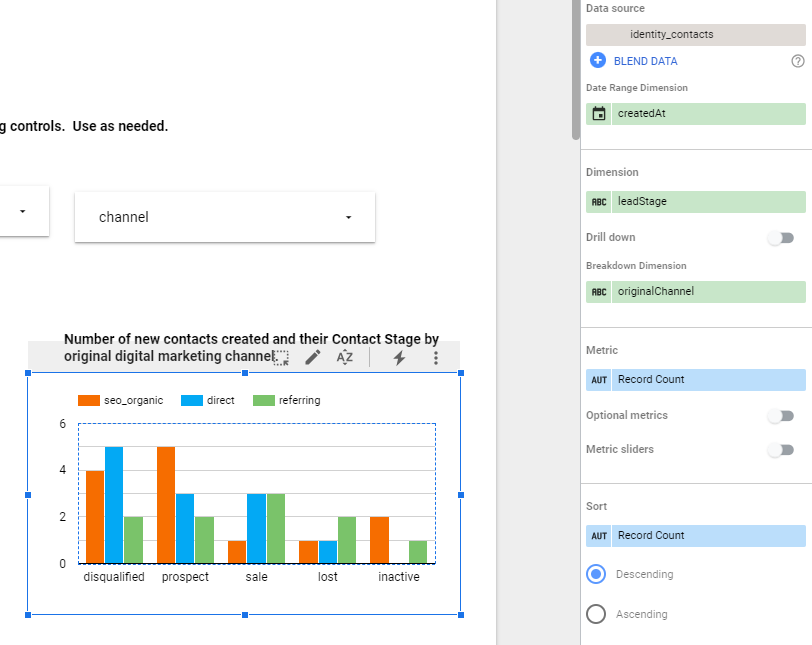
Note that in the API, Contact stage is called leadStage and MROI channel is originalChannel.
The screenshot also shows the Contact Stage values you might want to filter by, which are slightly different than what’s shown in the C360FX UI. Notably, SQL = “prospect”, Customer = “sale”, and Uncategorized = “active”.
As discussed above, if you wanted to have scorecard on the number of MQLs created, you’d also want to include SQLs, Lost, and Customers in that scorecard since they were at least MQLs, in addition to being more than MQLs.
originalChannel also has a different naming convention than you see in the C360 UI. Creating a table or chart that uses originalChannel as the dimension (like the one above) will spell out what those different channels are called, so you can refer to that when creating filters for a specific channel later.
In terms of filters, you’ll always want to have a filter for the siteID the same way you would for any other data you’re pulling from MCFX into Looker. Otherwise you’ll be seeing numbers from the WebFX client base.
It’s also often valuable to focus on contacts who were created through MarketingCloudFX tracking rather than through an integration. Use the createdBy filter in Looker Studio to include only those contacts created by “ingestion”, i.e. MCFX tracking.
Note: At this time, MCFX-tracked activities that required an integration to track in MCFX (such as 3rd-party forms, scheduling apps, ecomm orders) are shown as Created By IntegrationsFX. This may change in the future, but if this applies to your client you would not want to use this filter to try and find digital marketing leads. Instead you could filter by originalChannel and exclude “null” or “uncategorized”.
You can see all the other awesome dimensions you can examine data with in the sidebar.
An excellent report template including both Deal and Contact Stage reporting can be accessed and copied below:
- https://lookerstudio.google.com/reporting/41b8dc94-5a82-4269-8c11-4bab17acc0fe
FAQs For MarketingCloudFX Deals
We’ll still need to set up the standard integration with LeadManagerFX and CallTrackerFX, correct? This will not replace that?
No – this will ideally replace those workflows entirely due to all of the benefits mentioned at the top of this post.
Who is a good fit for this over our integrations with LeadManagerFX and CallTrackerFX?
Any client using Deals (Or opportunities – whatever jargon the CRM uses to specify deals) would be a good fit. It’s our SOP now and moving forward!
The only clients not a great fit would be those who are syncing updates from random areas in the CRM. For example, Hubspot has a field called lifecycle stage. Similar to contact stage, it stores a contact’s relationship to the business but does not have an amount or value for them. If your client syncs to one of these fields, we would simply just update the contact stage and rating in customer360FX. We would not log a deal in that case.
Is this a 1 or 2-way sync with a CRM?
With this data, it’s a one-way sync only! If a client is using a CRM, there shouldn’t be any need for us to push “Deal” data to them. MarketingCloudFX is not a CRM and wouldn’t have that data without them already having the CRM running in the first place!
How do I see my qualified leads with this update?
You can still see MQL, SQL, and Disqualified, and also thumbs up/down in the c360FX contact stage and contact quality fields or by using the identity_contacts data source in Looker.
Note that the “Contact Stage” is a customer360FX field, but will also sync to calltrackerFX and leadmanagerFX so your client will be able to see it there too! We’re just moving away from using “Touchpoint status” in our integrations.
Ratings do not sync down from the Customer360FX contact to the touchpoints in LeadManagerFX or CallTrackerFX. They do sync up to customer360FX from touchpoints though.
Both contact stage and contact quality can be filtered within Customer360FX.
What are other names for “Deals”?
Typically a deal is created within a CRM when a lead is “Qualified” and dollars are being discussed. The terminology for “Deal” varies from CRM to CRM. Below would be the corresponding object from the CRM we sync to MarketingCloudFX deals in the vast majority of scenarios:
- In Nutshell we would sync “leads” to “deals” in MarketingCloudFX
- In most CRM you convert a “lead” to a deal, opportunity, etc. This is not the case with Nutshell, so in this case a “Lead” is the best thing to sync to. Please note that if you create new nutshell leads upon form submission, it can inflate the number of “Deals” we have in MCFX.
- In Salesforce and Microsoft Dynamics 365 we would sync “opportunities” to “deals” in MarketingCloudFX
- In Zoho & Hubspot we would sync “deals” from the CRM to “deals” in MarketingCloudFX
- In ServiceTitan we would typically sync “Jobs” or “Estimates” to “Deals” in MarketingCloudFX
Questions About MarketingCloudFX Deals?
If you have questions about this feature, simply reach out to the DataTech team via operationsFX!