




Tracking phone calls in CallTrackerFX driven from Google Business Page (GBP) is a multi-step process.
As of recent years, Google Business Page, formerly Google My Business, now allows you to use tracking phone numbers from 3rd party tools such as CallTrackerFX in your page. This allows you to gain additional insights and data on your phone calls without impacting the accuracy of your NAP (name, address, phone number) which is known as one of the largest Local SEO ranking factors.
This is great news because for many local businesses, it’s not uncommon for their GBP listing to generate them more phone calls than their own website does for those who find them through an organic search.
How to Track GBP Phone Calls
Step 1 – Set Up UTM Parameters on Your Google Business Page Website Link
Step 1 for tracking these phone calls will be to add UTM parameters to the website link on our GBP listing. At WebFX, we typically recommend the following UTM parameter format for Google Business Page:
-
- yourdomain.com/?utm_source=google&utm_medium=organic&utm_campaign=gbp
If you have multiple locations, you can also use the utm_content parameter to add location-specific details such as “harrisburg-pa”.
Step 2 – Configure Your CallTrackerFX Number
The CallTrackerFX phone number should be configured to swap on a unique UTM parameter that’s only used for one specific channel.
For example, see the setup below:
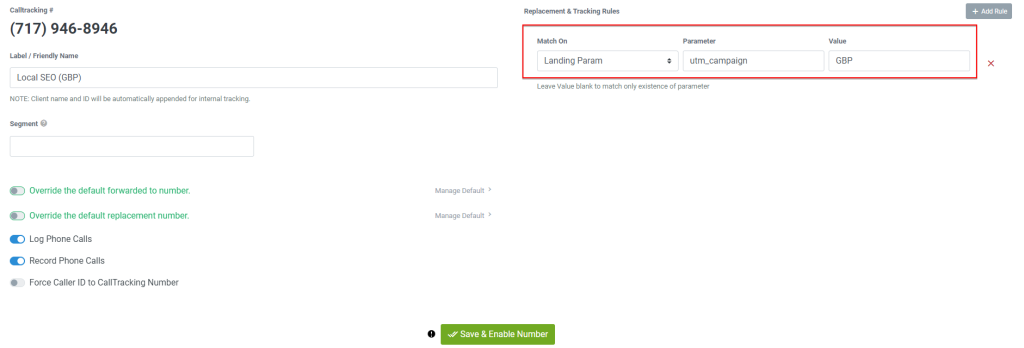
So your rule would swap on utm_content having the value of harrisburg-pa if that’s the value used in your GBP link.
Step 3 – Add the tracking pixel to your site
If the calltrackerFX pixel isn’t yet present on the site, you need to add it now to enable dynamic number swapping. It can also be enabled via the wordpress plugin by ticking the enable CallTrackerFX box.
If you already have CallTrackerFX’s pixel on your site, step 3 can be disregarded.
Step 4 – Add the number to your Google Business Page
Google Business Page now allows you to use mulitple numbers in your listing. For this to not impact your local SEO results and NAP, you’ll want to:
-
- Use the CallTrackerFX tracking line as your “Primary Phone” number
-
- Use your main business line (typically what CallTrackerFX will forward to) as your “Additional Phone”
This will keep your NAP consistent in the eyes of search engines, but also allow you to track and report on Google Business Page phone calls in CallTrackerFX!